
All of our target-containing modules (SEF, Plan, Performance Management) allow you to print reports containing the core information and the targets that are a part of that area, But what do you do if you need a custom PDF with specific targets? You download a custom target report!
Quick Steps
- Navigate to Planning
- Under All Targets, click View.
- Select the targets you want to appear on the report by ticking the box next to them
- Use the Run exports/assign themes dropdown to select from the Run Export options
- Once you have selected an option, a download will be triggered
Need More Detailed Help?
To download a custom target report, click on Planning on your main Perspective toolbar, then click on the relevant View button to select either your own Targets, or All Targets.
Select the targets you want to appear on the report by ticking the box next to them. You can use the new filter option to limit the number of targets that appear on that page. Click here to find out how you use this feature.
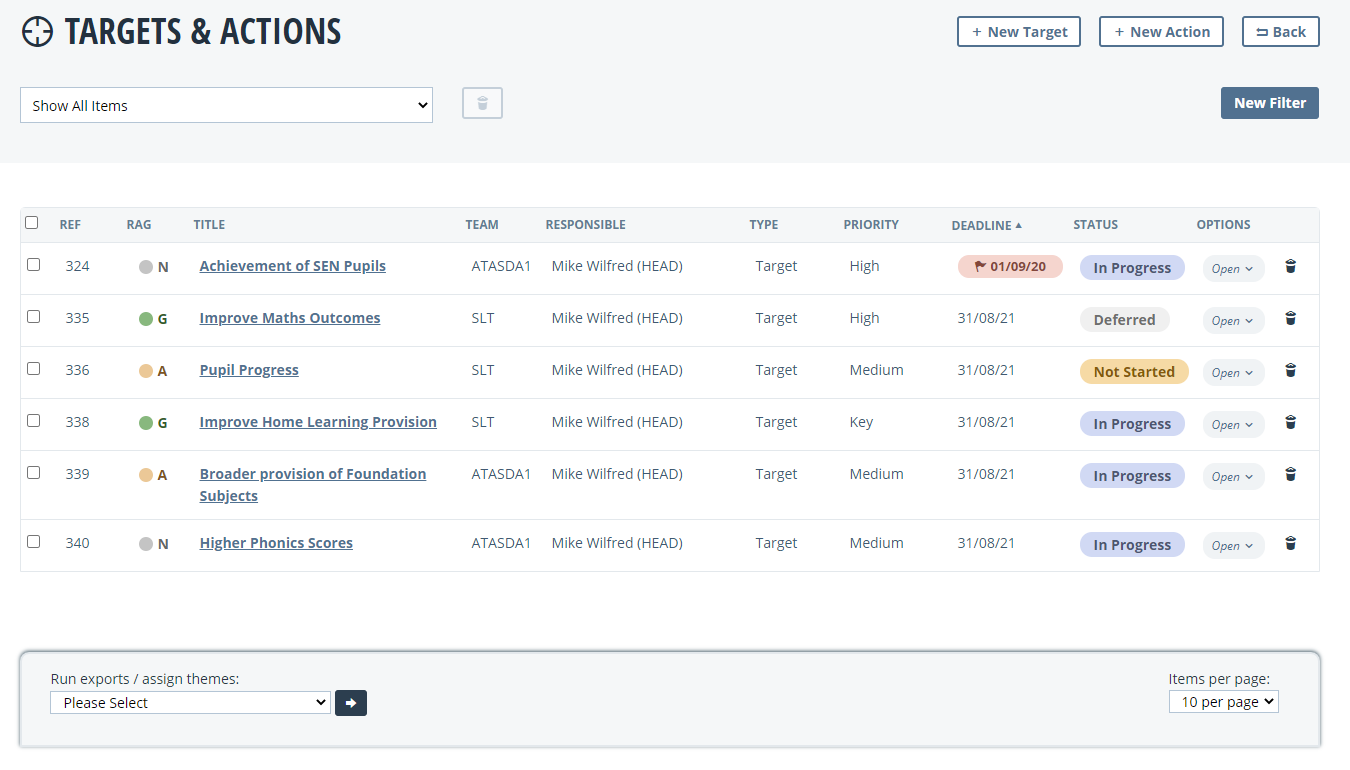
Once you have selected the relevant targets, use the Run exports/assign themes dropdown and select a choice from the Run an Export options.
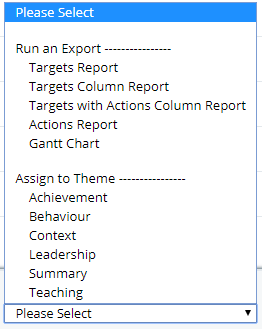
Once you have selected an option, a download will be triggered. This may take a few minutes if you have a large number of targets selected.
Once the download completes, you will have a PDF report containing just the targets you specified. Feel free to play around with the different options in the Run an Export section, to display these in a way that suits you.