
Quick Steps
- From your dashboard, select Targets
- Click on the name of the target you would like to edit
- Make any necessary changes and click Save
- Fill in any sub-tabs as necessary and Save
Need More Detailed Help?
Editing Targets via the Personal Dashboard
To edit a target you are personally responsible for, click the Targets tab from your Dashboard. You will then be shown all targets where you are the responsible staff member.
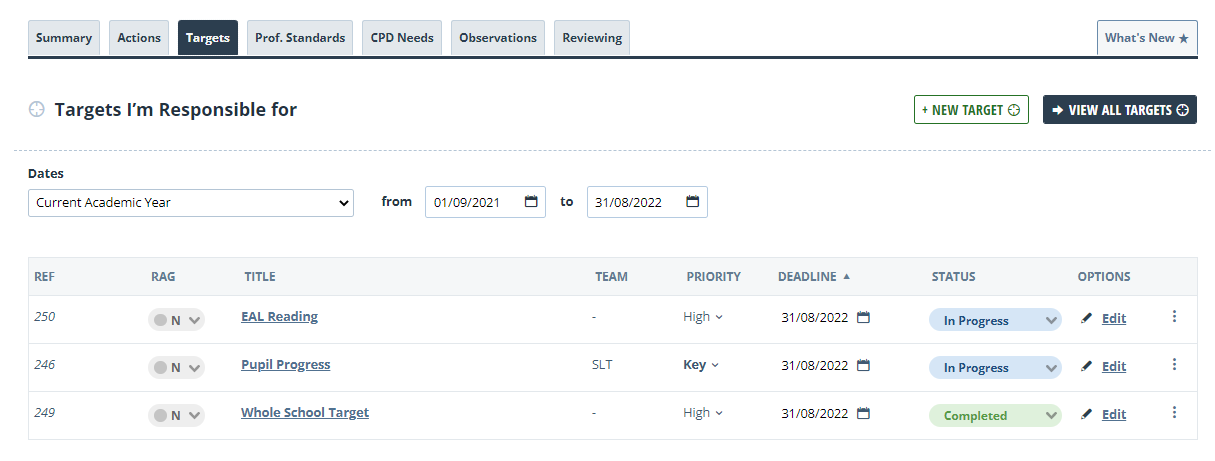
Click the target title or the Edit option, and a box will appear, allowing you to make quick changes to your target. For more information on each section within a target, please see the Creating Targets guide.
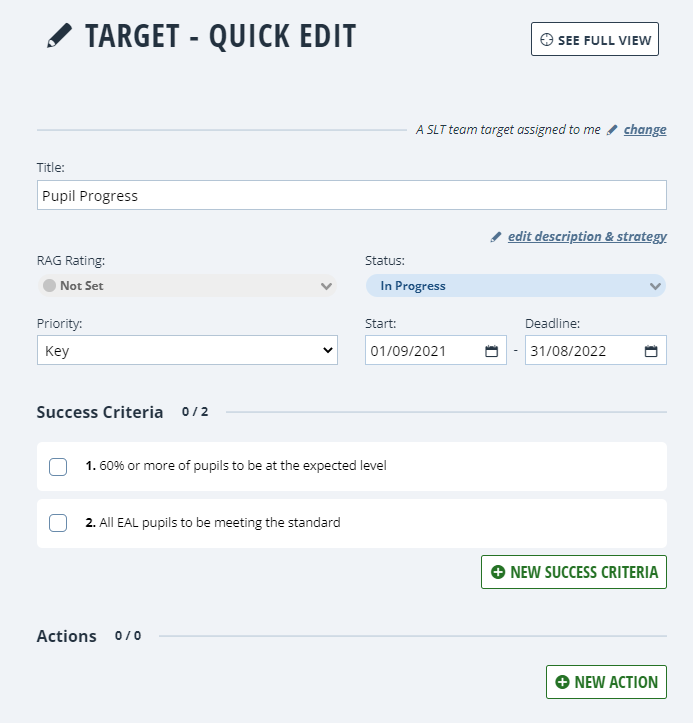
Save each edited section as you go and click Finish Editing when done.
Editing Targets via Planning
To edit a target you are not responsible for, navigate to the Planning area of the system.
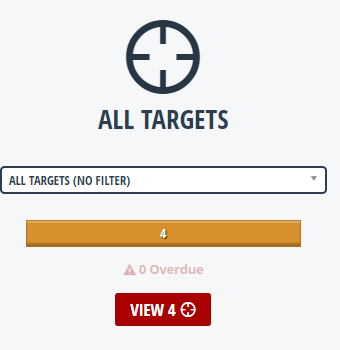
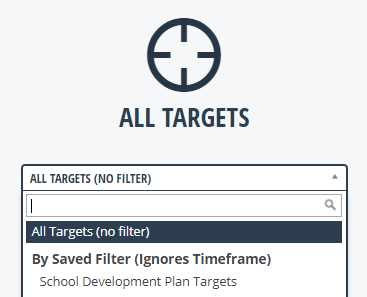
Filters you have created will appear in the central drop-down menu on the planning menu. You can then use the filters on this dashboard to refine your results.
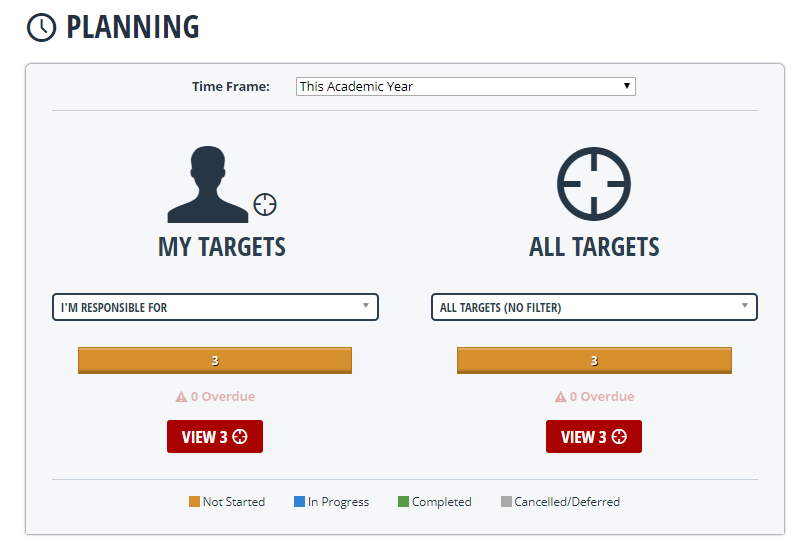
The number next to the View button represents how many targets will be returned when you click it. That number is based on the filters you applied on the dashboard.
When you are happy to proceed, click View. The system will then return the targets according to your applied filter. The image below shows what this will look like, but hopefully, you'll have a much better array of targets to choose from! To edit a target, click on the target name.
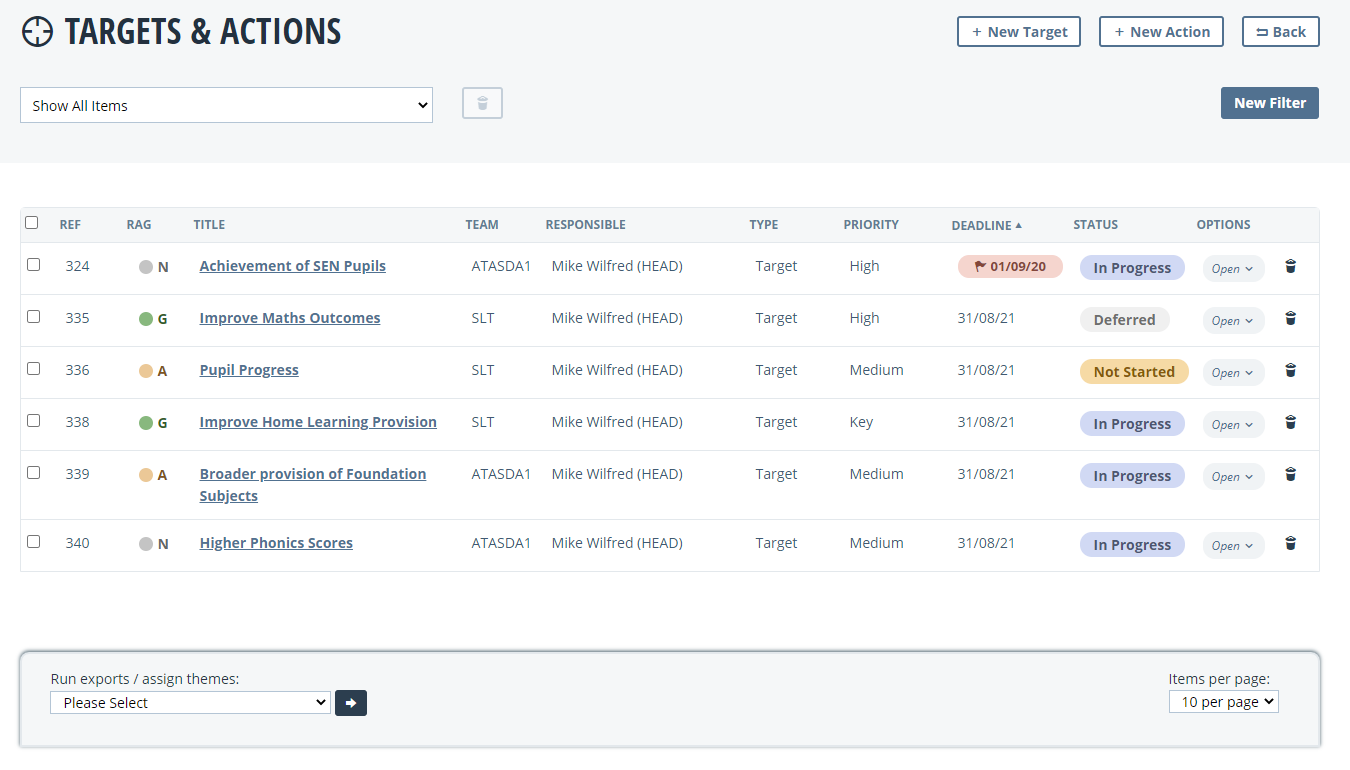
If you notice any targets that are greyed out, they are on a performance review that is not yet agreed. The review that the target is attached to would need to be agreed by both parties to become editable. The Mid-Year Reviews guide has more information on this.
Once you click the target name, you will be taken inside the target, where you can make any necessary changes. For more information on each section within a target, please see the Creating Targets guide.
Editing Development Plan Targets
Quick Steps
- Navigate to Planning and select View under All Targets
- Click on the name of the target you would like to edit
- Make any necessary changes and click Save
- Fill in any sub-tabs as necessary and Save
Need More Detailed Help?
To edit targets on your development plan, click Planning and select View under the All Targets heading.
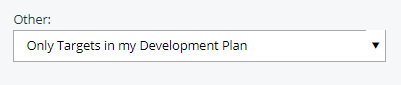
On the next page, click New Filter. This will allow you to create your customised filter. Click on the drop-down marked Other in this filter menu and select Only Targets in my Development Plan.
You can either hit Apply here to run that search or save this filter for a later date, meaning you can run it directly from your planning dashboard in the future. Add a name in the Filter Name field and click Save to keep that filter.

Your custom filter will then be available from the Filter dropdown on the planning dashboard. To run that search, select your filter and click the View button.
You will then be taken to your targets list, filtered for just targets on your development plan. You can then begin editing your targets by clicking on their name and following the steps further up in this guide.
Alternatively, you can edit your targets from the Plan Edit page. Details about how to do this can be found in this guide.